> For the complete documentation index, see [llms.txt](https://docs.vooi.io/llms.txt). Markdown versions of documentation pages are available by appending `.md` to page URLs; this page is available as [Markdown](https://docs.vooi.io/vooi-pro-v1/vooi_pro-operationalguidelines.md).
# Pro Operational Guidelines
## Getting Started with VOOI Pro
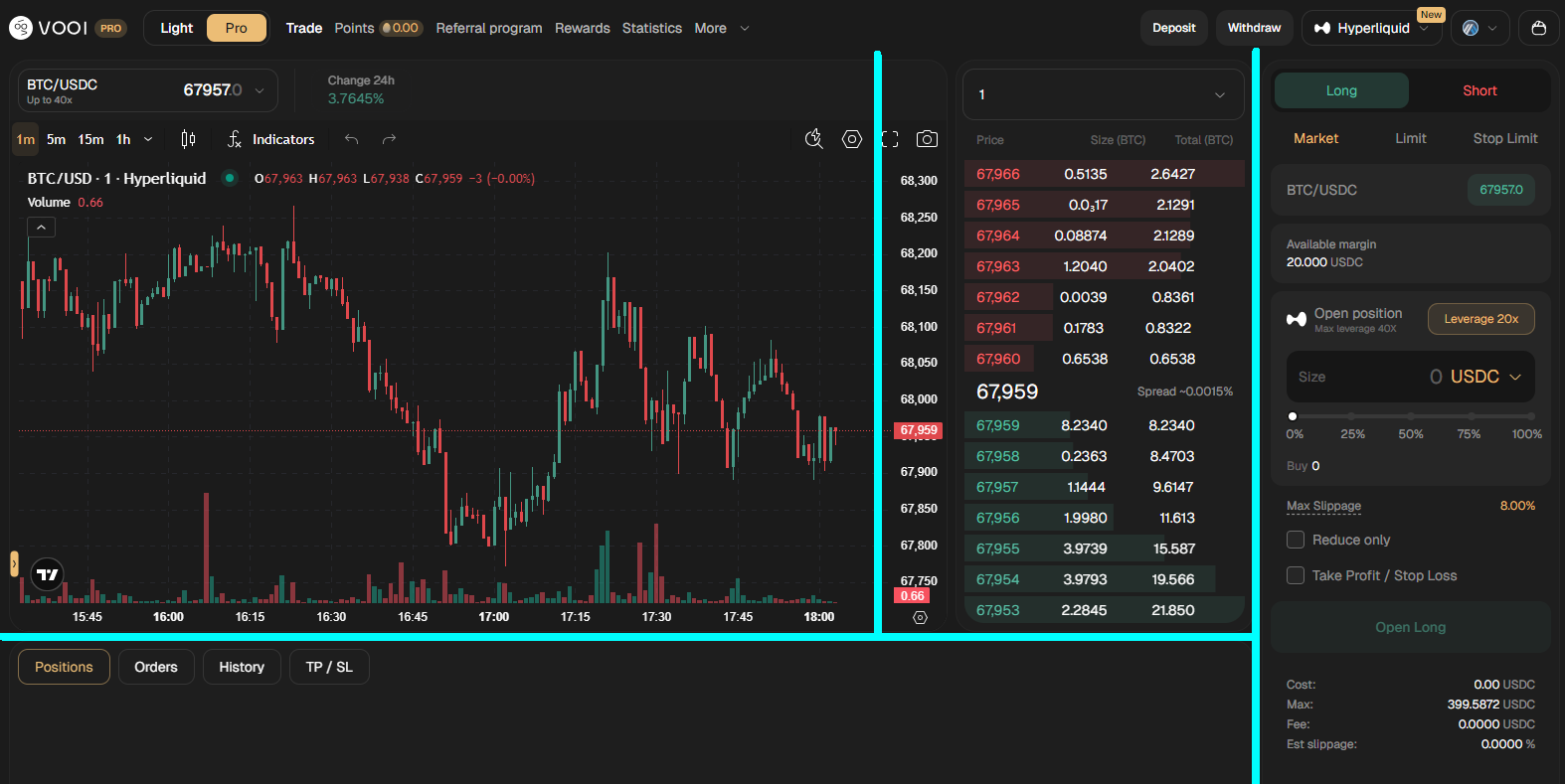
Before placing an order, it helps to understand how the trading screen is organized.
The terminal consists of four main areas:
**Market overview (left side)**\
Used to understand what is happening in the market. Here you can:
* View the price chart and recent price movement
* Change the timeframe
* Add indicators if needed
**Order book and price feed (middle)**\
Shows current bids/asks, recent trades, and overall market activity for the selected market.
**Order panel (right side)**\
Where order parameters are set and orders to open positions are placed.
**Positions and orders panel (bottom)**\
Displays open positions, active orders, order history, and TP/SL.
#### Trading Flow
Follow the steps below to start trading with VOOI Pro:
* [#id-1-connect-your-wallet](#id-1-connect-your-wallet "mention") :: connect a supported wallet to VOOI Pro
* [#id-2-select-venue](#id-2-select-venue "mention") :: choose the trading venue you want to use
* [#id-3-enable-trading-and-deposit-or-move-collateral](#id-3-enable-trading-and-deposit-or-move-collateral "mention") :: enable trading permissions and deposit or move funds for trading
* [#id-4-open-position](#id-4-open-position "mention") :: choose the market, set order parameters, and place an order to open a position
* [#id-5-manage-positions-and-pnl](#id-5-manage-positions-and-pnl "mention") :: monitor open positions and periodically settle PnL when required by the venue.
* [#id-6-close-position](#id-6-close-position "mention") :: place an order to close a position and review order history.
* [#id-7-withdraw](#id-7-withdraw "mention") :: place orders to close open positions, settle PnL, and withdraw the collateral (partly or fully).
{% hint style="info" %}
* For more information about **position types**, please refer to [Position Types](/vooi-pro-v1/vooi_pro-operationalguidelines/position-types.md)
* For more information about **order types**, please refer to [Order Types](/vooi-pro-v1/vooi_pro-operationalguidelines/order-types.md)
{% endhint %}
### (1) Connect Your Wallet
To connect your wallet:
1. Open [**https://pro.vooi.io**](https://pro.vooi.io)
2. Click **Connect Wallet**:\

3. Select your wallet and approve the connection.
Connecting a wallet is required to access trading, deposits, withdrawals, and account balances on supported venues.
### (2) Select Venue
The VOOI Pro provides a web-based interface to interact with the following venues:
| Venue | Collateral | Networks |
| --------------- | ---------------------------------------------------------------------------------------------- | ----------------------------------------------------------------------------------------------------------------------- |
| **Lighter** | USDC | Arbitrum |
| **Aster** |
USDC.e, USDC, USDT
USDT, USD1, LISUSD, USDF
USDT, USD1, USDC
|
Arbitrum
BNB Chain
Ethereum
|
| **Hyperliquid** | USDC | Arbitrum |
| **Orderly** | USDC | Arbitrum, BNB Chain, OP Mainnet, Base, Mantle, Sei Network, Ethereum, Avalanche, Morph, Sonic, Bearchain, Story, Solana |
| **Ostium** | USDC | Arbitrum |
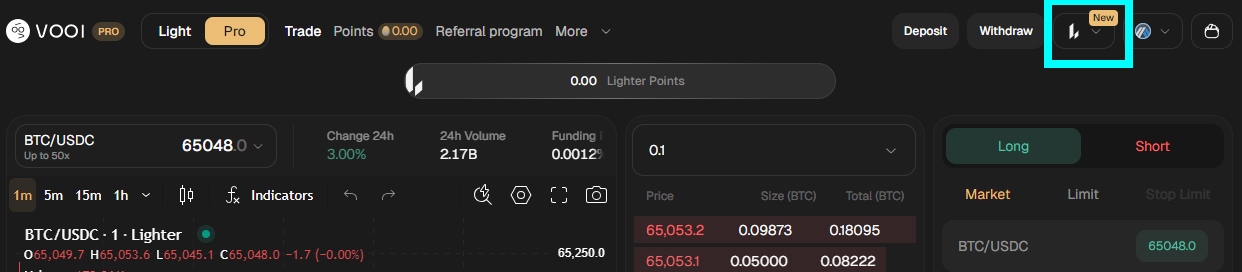
Select the venue to trade on from the drop-down list at the right:
### (3) Enable Trading and Deposit or Move Collateral
Before opening positions, trading needs to be enabled on the selected venue and collateral needs to be deposited to the trading account.
#### Enabling trading
When using a venue for the first time, an account is created by signing a message in your wallet.
This operation is free and only confirms wallet ownership. Some venues combine account creation with first collateral deposit.
If the interface shows **Enable trading**, click the button and sign the request in your wallet.
#### Depositing or transferring collateral (margin)
Collateral is required to open and maintain leveraged positions.
Example (Hyperliquid collateral settings):
* Collateral token: **USDC**
* Network: **Arbitrum**
If your funds are on another network or in a different token, use [VOOI Pro bridge/swap section](https://pro.vooi.io/bridges) to convert them before depositing.
**To deposit funds:**
1. Click **Deposit**
2. Enter the amount, click Deposit:\

3. Confirm the transaction in your wallet.
After confirmation, the funds will appear in your trading account.
**Important:**
* Some venues support multiple networks and tokens for deposits — ensure the correct token and network are selected
* Token approval may be required before the first deposit
* Deposits usually complete within seconds but may take longer depending on network conditions
**To transfer free margin:**
Example: You have free collateral on Hyperliquid and want to move part or all of it to Lighter:\

1. Open [VOOI Pro → Transfer Margin](https://pro.vooi.io/transfer)
2. Select the source venue in the From field
3. Select the destination venue in the To field
4. If you do not yet have an account on the destination venue, you will be prompted to create one
5. Enter the amount of available margin to transfer
6. Confirm the operation
For more information on **Transfer Margin**, see [VOOI Transfer Margin](/vooi-ultra-v3/vooi_ultra-tools/vooi-transfer-margin.md)
### (4) Open Position
**Before opening a position, decide:**
* Do you expect the price to go up or down?
* Do you want instant execution or a specific price?
* How much of your margin do you want to risk?
{% columns %}
{% column width="41.66666666666667%" %}
{% endcolumn %}
{% column width="58.33333333333333%" %}
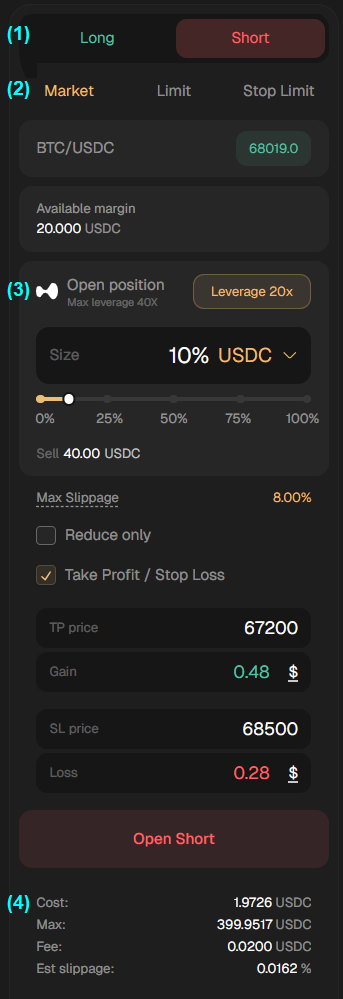
**(1) Choose direction**
* **Long:** profit if price rises
* **Short:** profit if price falls
**(2) Choose order type**
* **Market:** instant execution
* **Limit:** execution at chosen price
* **Stop Limit:** order triggers later when price reaches a level
**(3) Set order values**
* **Leverage:** how large the position is relative to collateral (leverage increases both potential profit and potential loss)
* **Size:** how much collateral you use (your risk level)
* **Max slippage:** price protection during execution
Optional but recommended:
* **Take Profit / Stop Loss** — automatic exit levels
**(4) Order details**
Shows estimated cost, fees and slippage before submission.
{% endcolumn %}
{% endcolumns %}
When ready place the order: press **Open Long** or **Open Short** and confirm in the wallet.
The position will appear in the **Positions** tab at the bottom of the terminal. Pending orders appear in the **Orders** tab:
**More:**
* For more information on Long / Short positions, refer to [Position Types](/vooi-pro-v1/vooi_pro-operationalguidelines/position-types.md)
* For more information on the order types, refer to [Order Types](/vooi-pro-v1/vooi_pro-operationalguidelines/order-types.md)
### (5) Manage Positions and PnL
All trading activity is tracked in the panel at the bottom of the terminal:
Here you can monitor positions, manage orders, and review your trading history.
Available tabs:
* **Positions**\
Shows all open positions with key details such as size, entry price, unrealized PnL and liquidation price.
* **Orders**\
Displays active (pending) orders that have not been executed yet. These orders can be cancelled at any time.
* **History:**\
Contains the record of executed trades, closed positions and past orders.
* **TP / SL:** Displays take profit and stop loss orders. You can modify or cancel these orders before execution.
#### **Settling PnL**
Profit and Loss (PnL) reflects how a position performs over time.
On some venues, PnL can be **settled without closing the position**. This means the current profit or loss is realized and added to the available balance, while the position remains open and continues to move with the market.
### (6) Close Position
To close a position, use the Positions panel at the bottom of the terminal:
1. Open the **Positions** tab (this tab shows all currently open positions)
2. Choose how to close the position
***
There are two main ways to close:
* **Instant close**\
Click **Close** next to the position to submit a Market order that closes it immediately.
* **Close using TP/SL**\
Use the **TP/SL** button to set **Take Profit** and/or **Stop Loss** levels that will close the position automatically when the price reaches the selected levels.
***
3. Manage TP/SL orders\
All active Take Profit and Stop Loss orders can be viewed and managed in the **TP/SL** tab.\
There you can edit or cancel existing exit orders.
4. View trade history\
All executed orders are available in the **History** tab.
### (7) Withdraw
If you decide to stop trading or reduce your exposure, you can withdraw funds from your trading account.
There are two common scenarios:
1. **Withdraw unused collateral**\
You can withdraw free (unused) collateral at any time.\
Funds that are locked in open positions cannot be withdrawn.
2. **Withdraw all funds**\
To withdraw the full balance:
1. Close all open positions
2. Cancel any pending orders
3. Ensure all collateral is available
4. Withdraw the remaining balance
#### How to Withdraw
1. Click **Withdraw** at the top of the terminal.
2. Enter the amount you want to withdraw and hit the **Withdraw** button:\

3. Confirm the transaction in your wallet.
After confirmation, the funds will be transferred from your trading account back to your wallet.
**Important:**
* Only available (free) collateral can be withdrawn
* Open positions must be closed before withdrawing all funds
* Processing time depends on the venue and network conditions
* Fees may apply depending on venue rules
***
## Aster: Trading Mode Settings
When trading on Aster through VOOI, the following modes are currently supported:
* **Cross Margin** – your margin is shared across all positions.
* **Multi-Asset Mode** – trades are backed by multiple assets used together as collateral, allowing positions to share margin across supported tokens.
* **One-Way Mode** – Positions can only be opened in one direction (either long or short) per trading pair
**Other Modes:** Aster also supports **Isolated Margin, Single-Asset Mode, and Hedge Mode**, but these are not yet available on **VOOI Pro**.
By default, Aster uses **Cross Margin, Multi-Asset Mode, and One-Way Mode**.
If settings differ, it may prevent trading through VOOI on Aster.
**To configure the supported modes:**
1. Open Aster directly:
2. Connect the same wallet you use to log in to **VOOI Pro**.
3. Enable trading.
4. Switch to the following modes in the **Aster interface**:
1. **Isolated Margin -> Cross Margin:**\

2. **Single-Asset Margin -> Multi-Asset Margin:**\

3. **Hedge Mode -> One-Way Mode**\

5. Then return to VOOI to continue trading.
***
## Hyperliquid: Disabling Unified Account Mode
When trading on Hyperliquid through VOOI, **Unified Account Mode is not supported**.
If Unified Account Mode is enabled on Hyperliquid, trading through VOOI will be unavailable and a notification will appear in the VOOI trading interface.
To disable **Unified Account Mode**
1. Open Hyperliquid directly:
2. Connect the same wallet you use to log in to **VOOI**.
3. Enable trading if you have not done so yet.
4. Open the **Settings** menu at the top right corner in the Hyperliquid interface and disable **Unified Account Mode:**\

5. After disabling it, transfer your funds from the **Spot balance** to the **Perps balance** on Hyperliquid.
6. Then return to VOOI to continue trading.